Your First Python Program
Let's start with the traditional first program — printing text to the screen. Before we write any code we need to open our workspace.
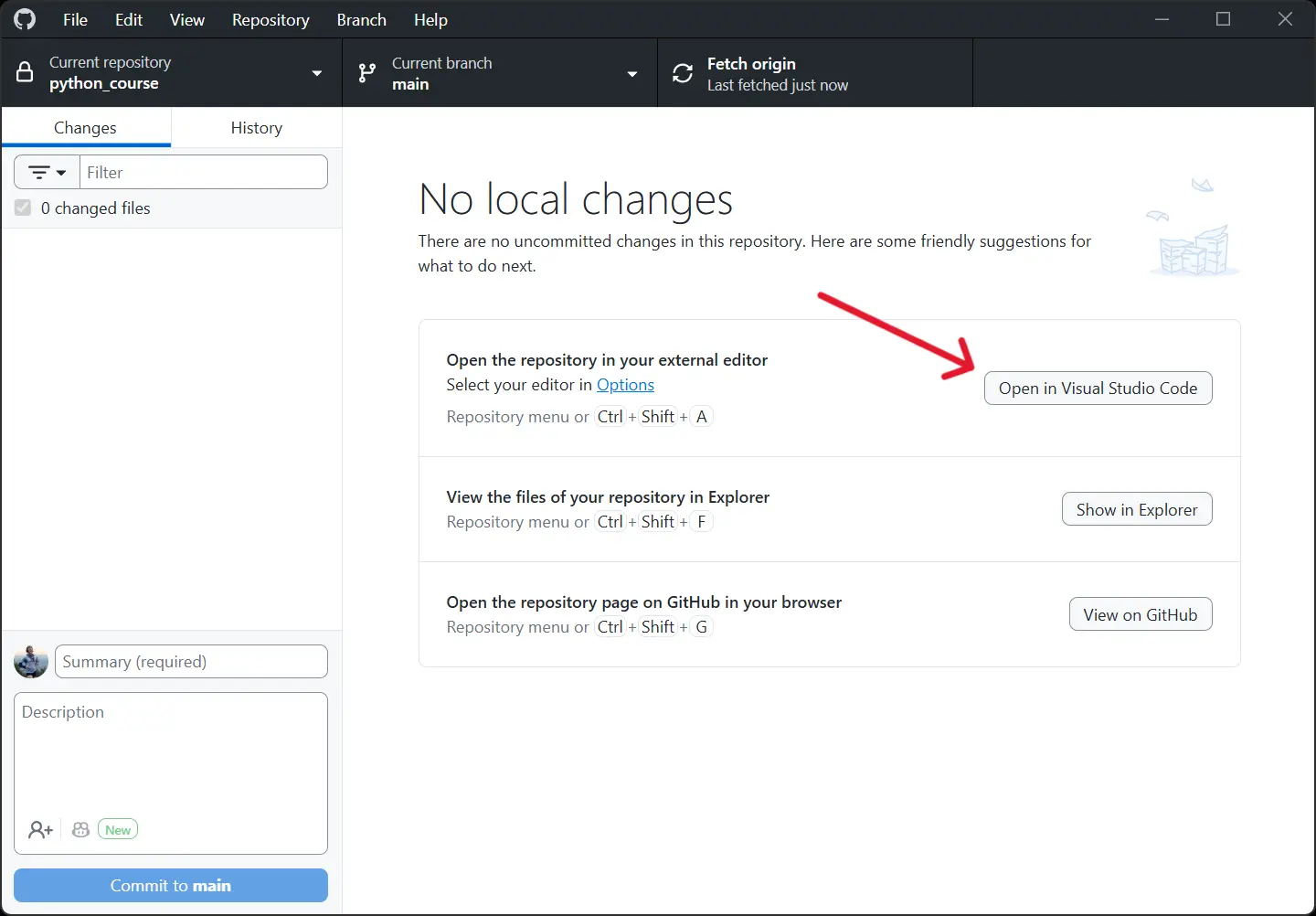
Open GitHub Desktop. You should see the pythonessentials repository you cloned in part one listed on the left. Click on it and then click Open in Visual Studio Code.
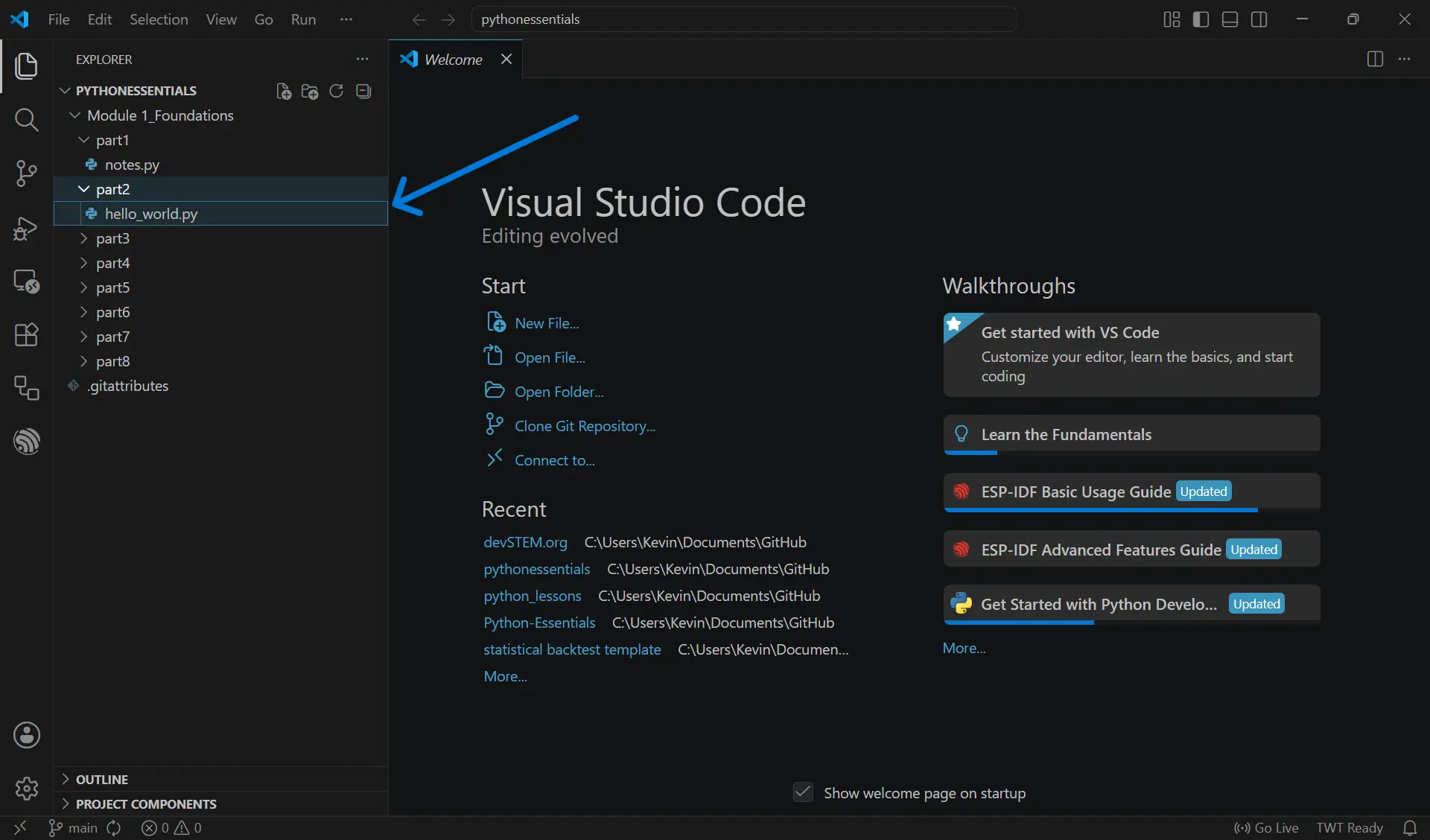
When VS Code opens you will see the full course folder structure in the Explorer panel on the left. Each lesson has its own folder already created for you. Find the part2 folder and open the hello_world.py file inside it.
Hello World!
In this section we will write our first program using Python.
In the hello_world.py file type the following: In Python, single and double quotes can both be used for strings.
print("Hello World!")
Run the program by clicking the ▶️ button in the top right corner of VS Code.
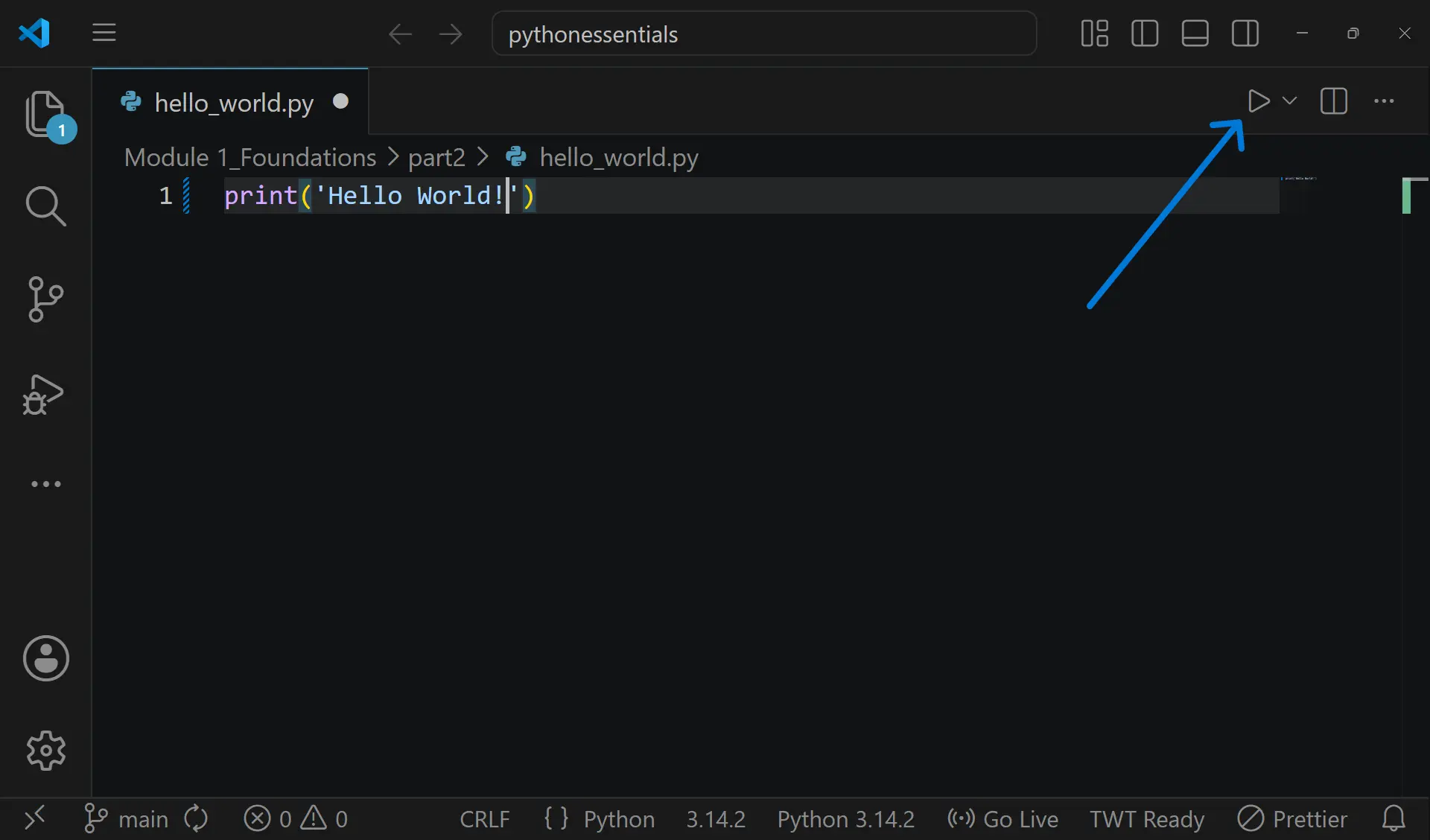
When you run this program Python sends the text inside the quotation marks to the terminal at the bottom of the screen.
Now let's add your instructor as a collaborator on your GitHub repository so your work can be reviewed.
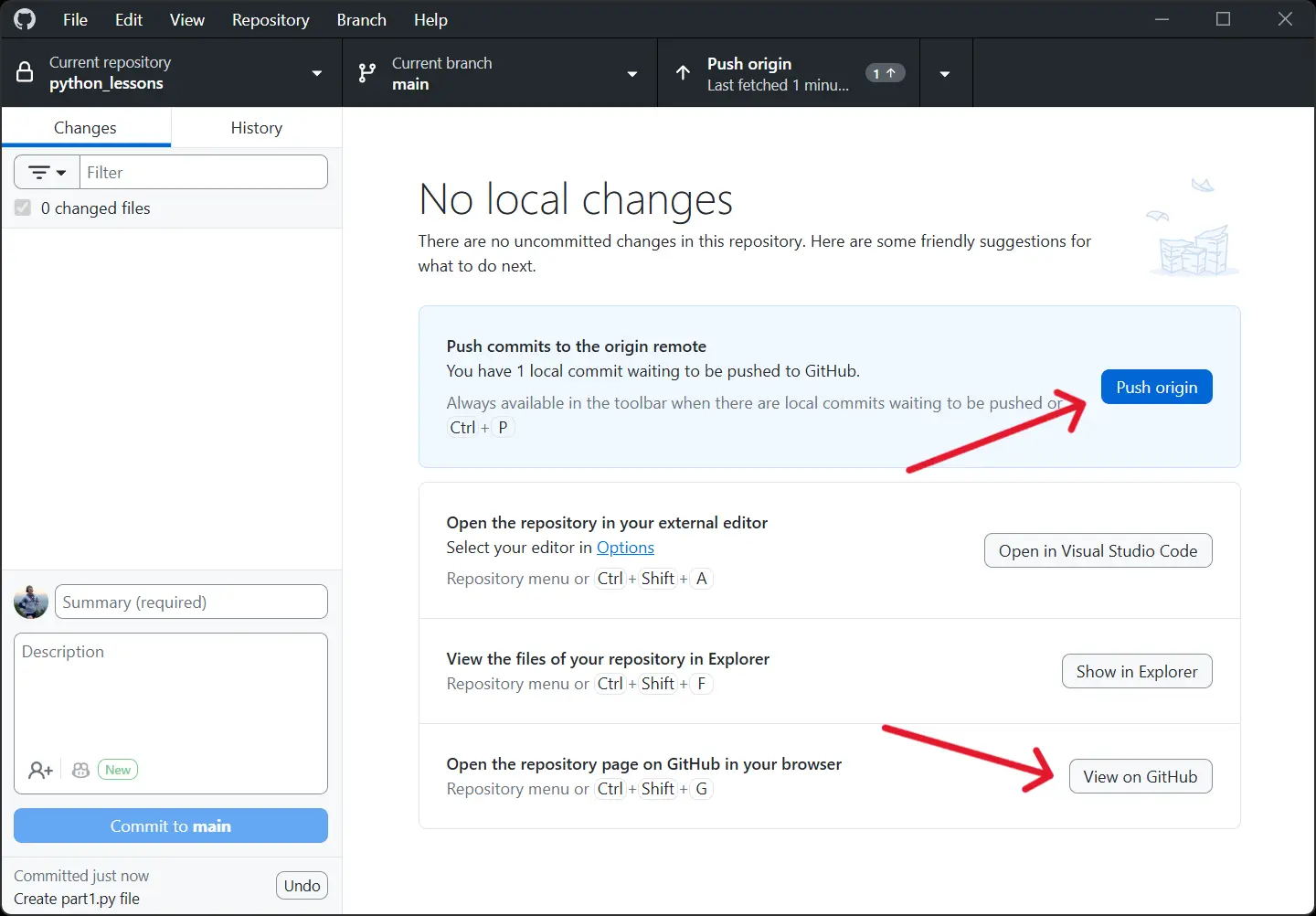
Open GitHub Desktop and click View on GitHub to open your repository in the browser.
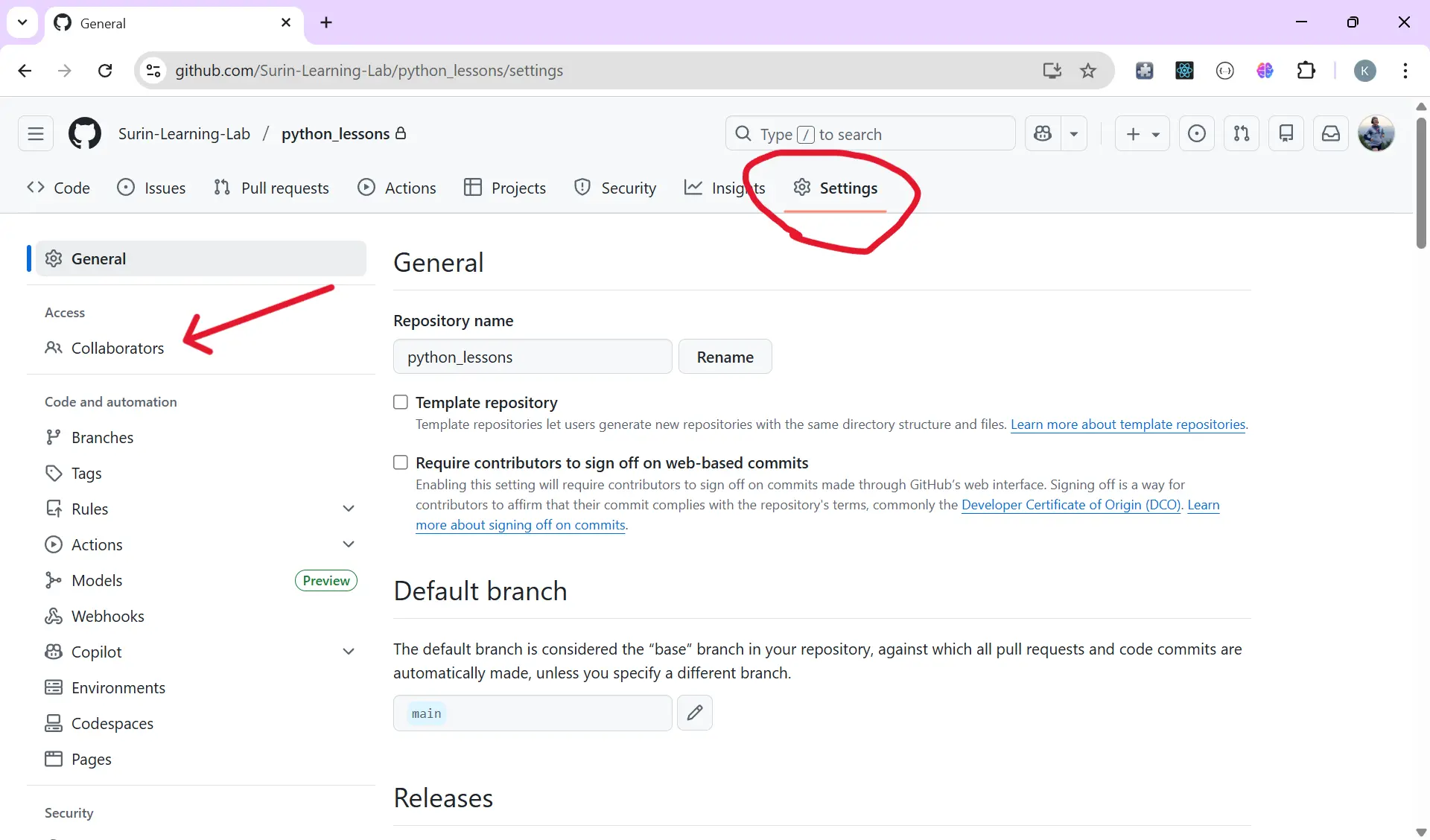
In GitHub, click on Settings in the top menu. Then from the left sidebar select Collaborators.
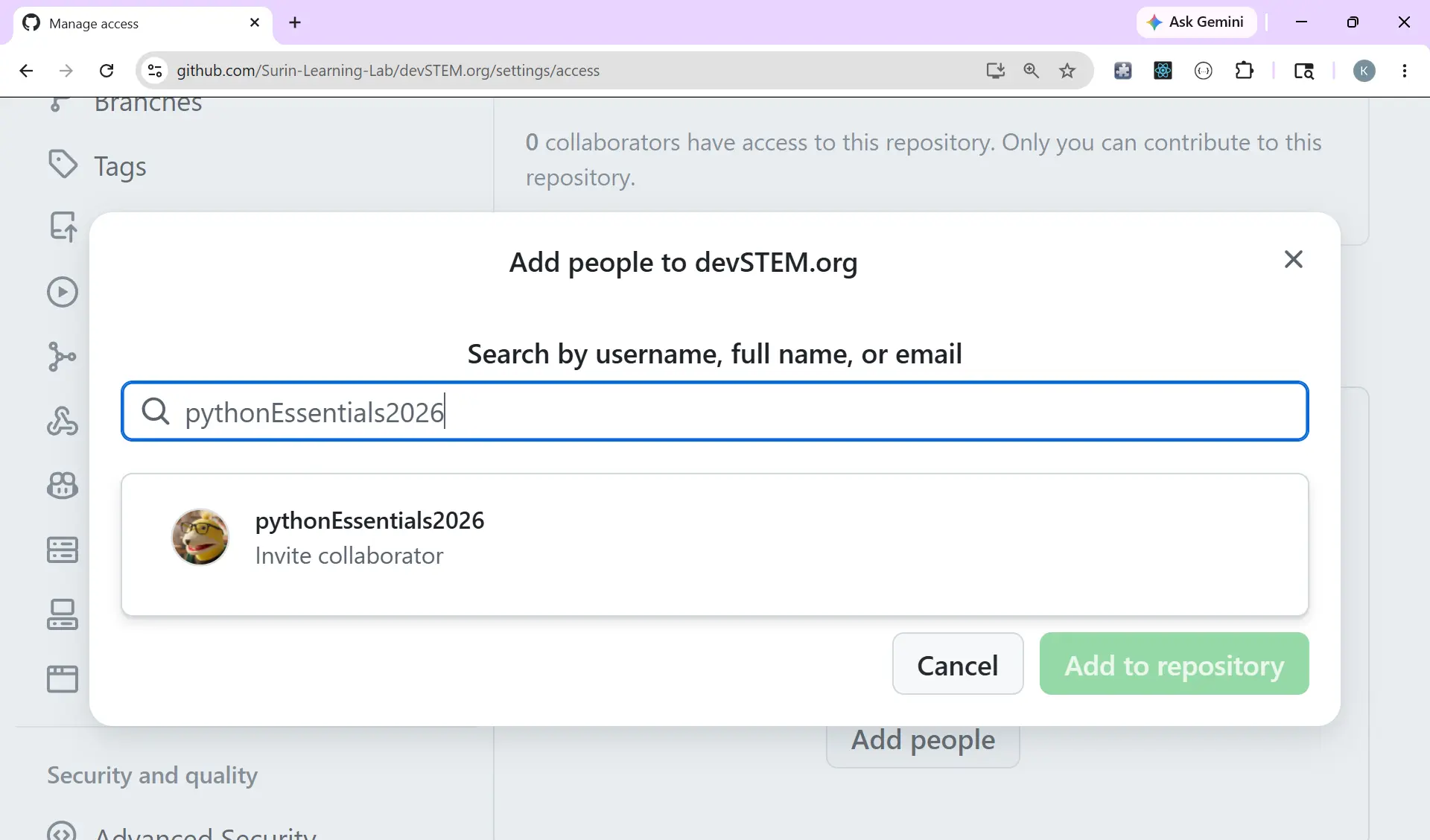
Search for and add your instructor as a collaborator.
If you are taking the self-directed course and would like your exercises to be assessed by a Python Essentials instructor, please add pythonEssentials2026 as a collaborator on your GitHub repository. An instructor will then contact you.
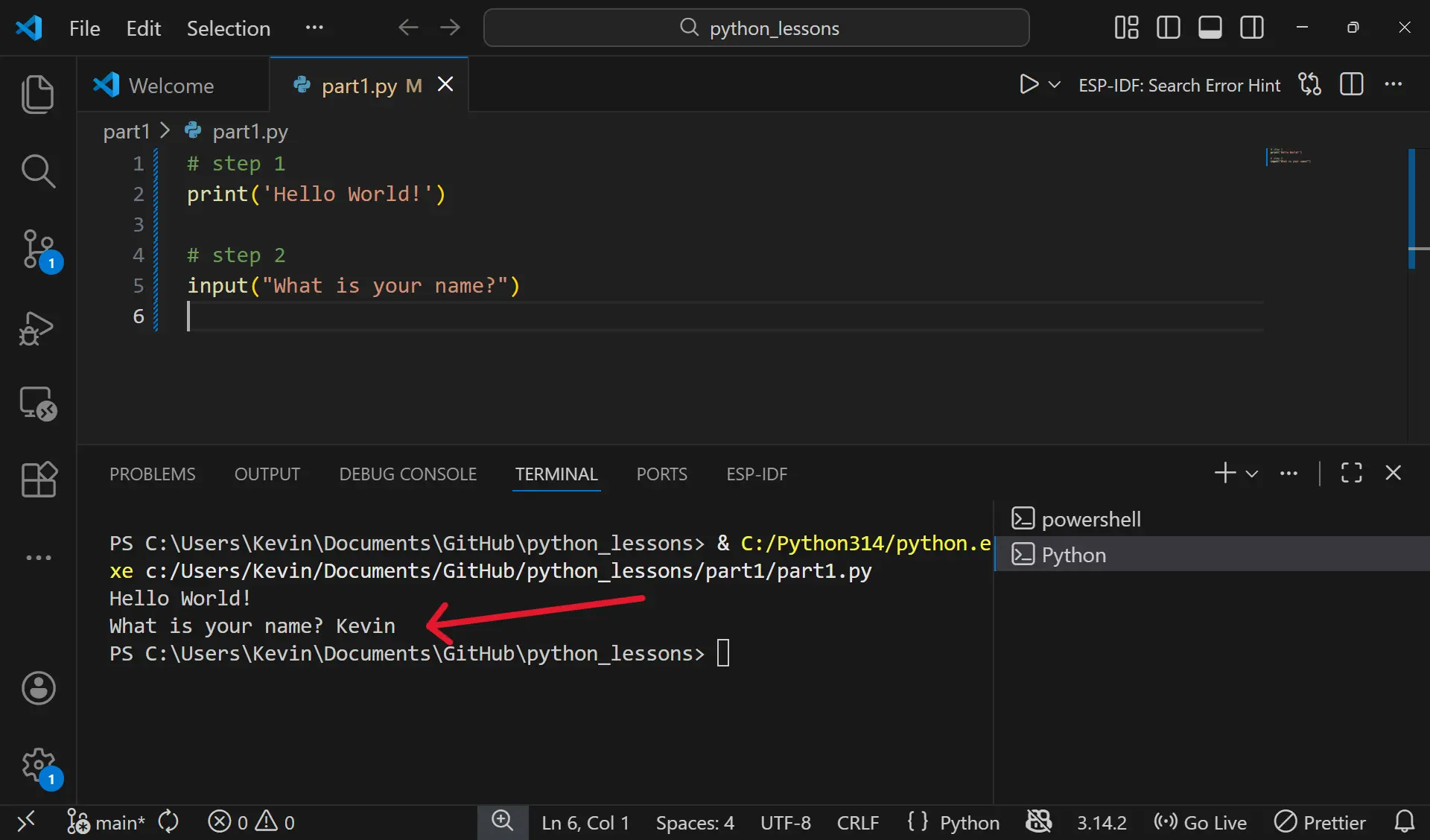
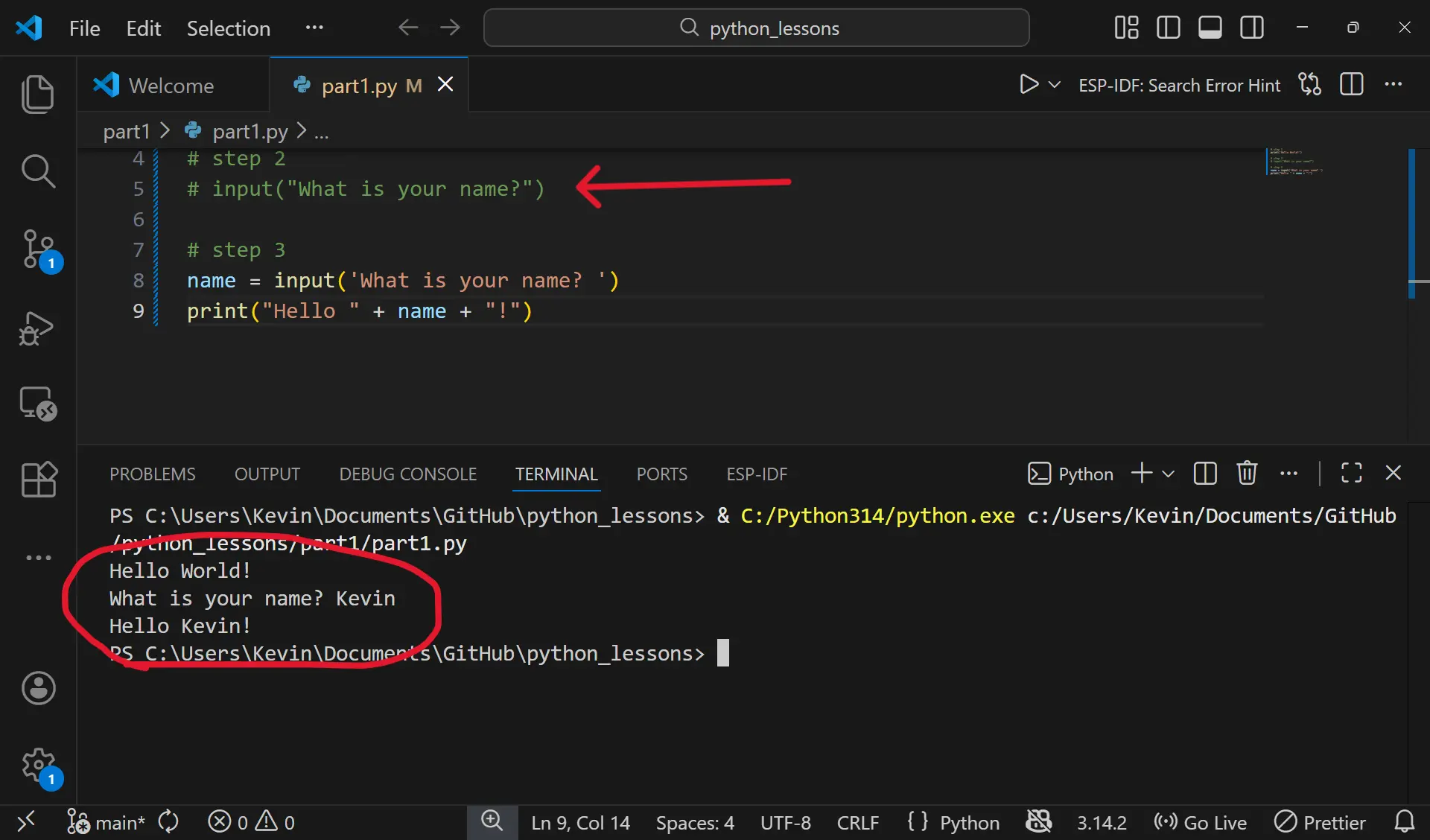
Next we want to interact with the program by using the input() function.
input("What is your name?")
When we run this program the terminal shows the question. After you type your name and press Enter the program finishes but nothing appears on the screen. This happens because although we asked for input we did not store the user's response in a variable A variable is like a labeled container in your program that stores a piece of information so you can use it later. Instead of retyping the value over and over you give it a name and then refer to that name. so the program has nothing to display back.
In this step we will create a variable called name that stores the input provided by the user. Once the input is saved we will use the print() function to display it on the screen. Make sure to add spaces in the appropriate places so that the output is readable.
name = input("What is your name? ")
print("Hello " + name + "!")
Now when we run the program you will see the name variable printed to the screen.
Notice that as we progress through the program we are commenting out parts of the code so we do not get duplicate outputs in the terminal. To comment out a line of code use Ctrl / on Windows or Cmd / on Mac.
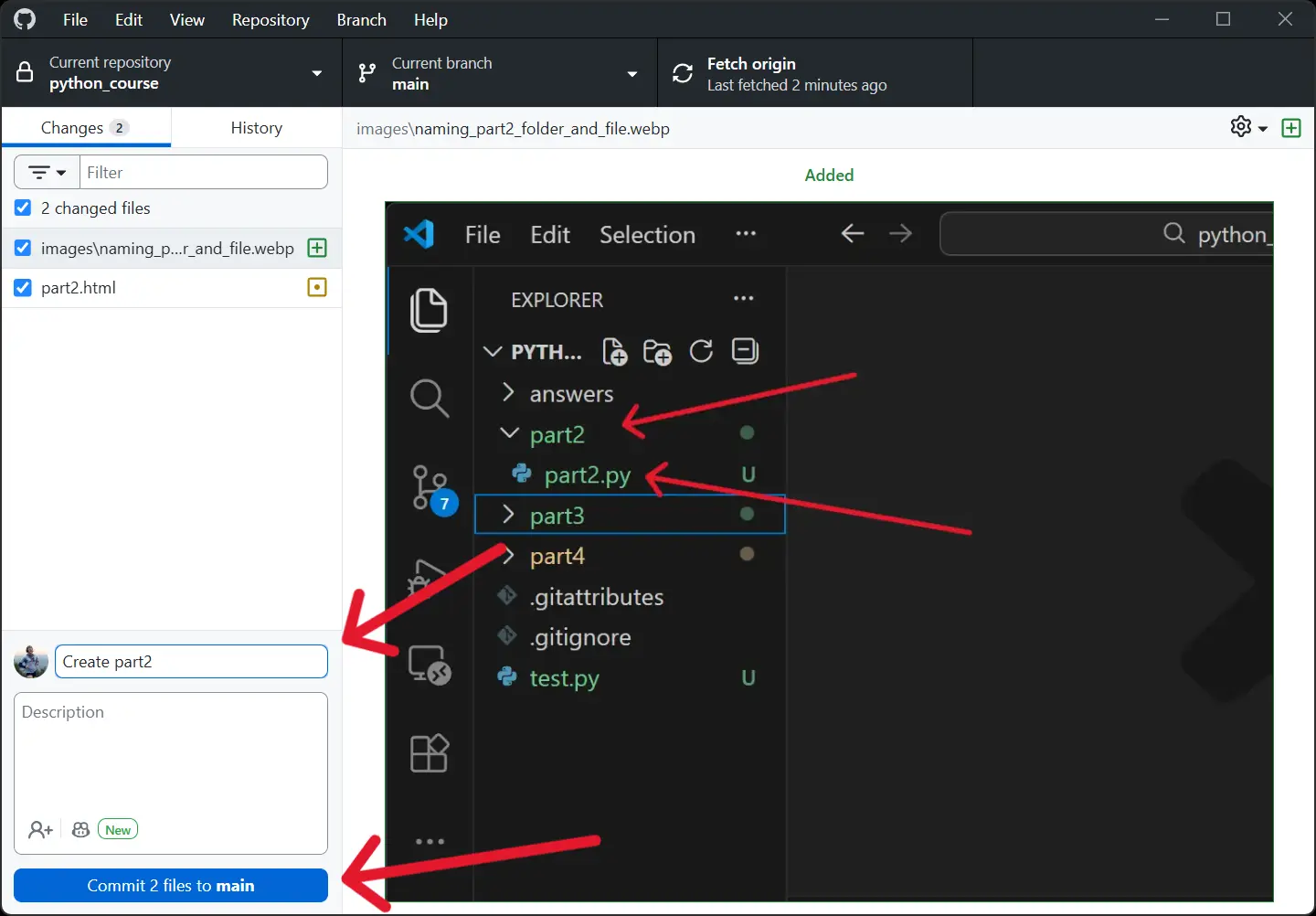
Once you have finished the exercises below, save your file and open
GitHub Desktop. You will see hello_world.py listed as a
changed file. Add a short commit message like
completed part2 exercises, click
Commit to main and then click
Push origin to save your work to GitHub.
Time to experiment!
Coding Exercises (VS Code) Instructions:
- Open the part2 folder in your cloned repository and complete the exercises below.
- Use # comments to explain your answers.
Exercise 1: Ask for Age
Goal: Store another piece of input in a variable.
- Ask for the user's name
- Ask for the user's age
- Print both values together in a sentence
Expected output:
What is your name? Fionn
How old are you? 99
Hello Fionn, you are 99 years old.
Exercise 2: Favourite Color
Goal: Add another input and combine it into a sentence.
- Ask for the user's favourite color
- Print a sentence using the input
Expected output:
What is your favourite color? Xanadu

Holy cow, Xanadu is a great color!
Exercise 3: Combine Multiple Inputs
Goal: Practice using several variables in one output.
- Ask for name
- Ask for age
- Ask for favourite color
- Print a full sentence combining all three
Expected output:
What is your name? Jungkook
How old are you? 28
What is your favourite color? Coquelicot

Hello Jungkook. You are 28 years old, and your favourite color is Coquelicot, what a great color!